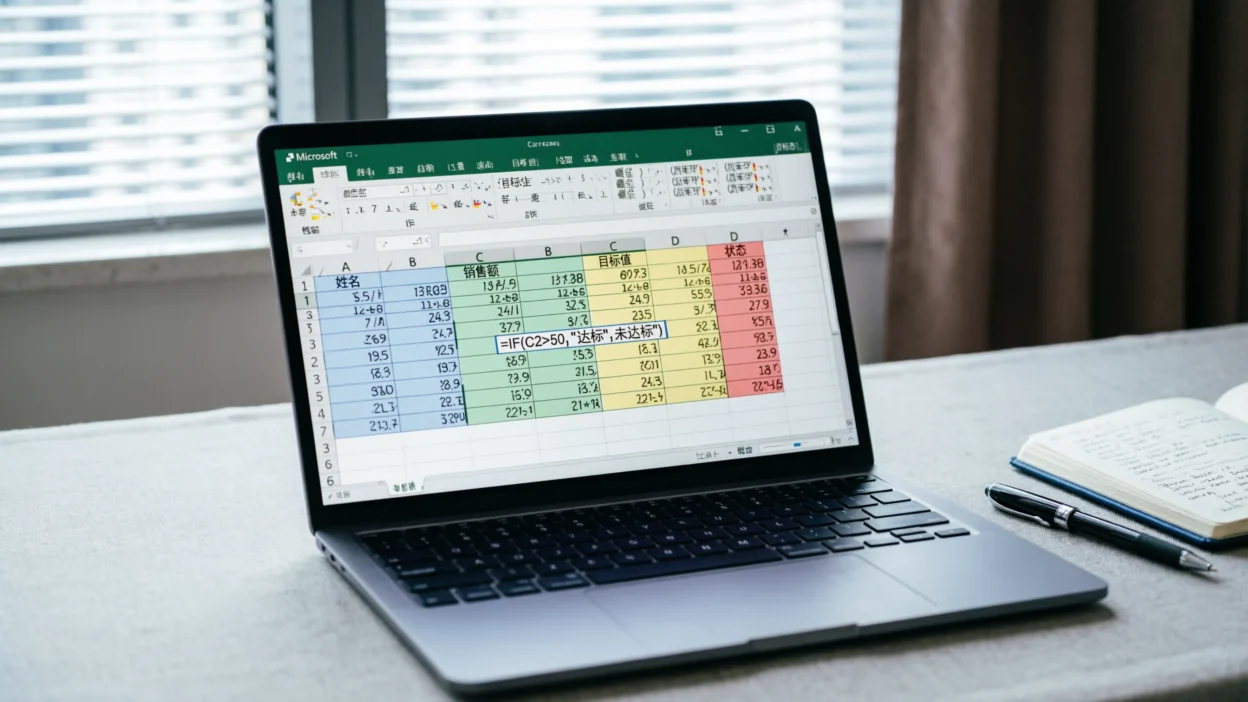
The IF function in Microsoft Excel is one of the most popular formulas used to make decisions inside spreadsheets. It checks whether a condition is true or false and then returns a result based on that condition.
In simple terms:
- If something is true → Excel shows one result
- If something is false → Excel shows another result
The IF function is widely used for grading systems, financial tracking, inventory management, attendance sheets, and many other spreadsheet tasks.
Basic IF Function Syntax
=IF(logical_test, value_if_true, value_if_false)Meaning of Each Part
| Part | Purpose |
|---|---|
| logical_test | The condition Excel checks |
| value_if_true | Result if condition is true |
| value_if_false | Result if condition is false |
Simple IF Function Example
Example: Pass or Fail
=IF(A1>=50,"Pass","Fail")How it works:
- If A1 is 50 or higher → “Pass”
- If A1 is below 50 → “Fail”
This is one of the easiest ways to understand IF formulas.
IF Function with Text Values
The IF function can also compare words and text.
Example:
=IF(B1="Yes","Approved","Rejected")Result:
- If B1 contains “Yes” → “Approved”
- Otherwise → “Rejected”
Text values must always be inside quotation marks.
IF Function with Numbers
You can compare numbers easily using logical operators.
Example:
=IF(C1>100,"High","Low")Meaning:
- More than 100 → “High”
- 100 or less → “Low”
Nested IF Functions
Nested IF means placing one IF function inside another to test multiple conditions.
Example: Grade Calculation
=IF(A1>=90,"A",IF(A1>=80,"B",IF(A1>=70,"C","Fail")))Output:
- 90+ → A
- 80–89 → B
- 70–79 → C
- Below 70 → Fail
Nested IF functions are useful but can become complicated if too many conditions are added.
IF Function with AND
The AND function checks whether multiple conditions are all true.
Example:
=IF(AND(A1>=50,B1="Yes"),"Qualified","Not Qualified")Result:
Excel shows “Qualified” only if:
- A1 is at least 50
- AND B1 says “Yes”
IF Function with OR
The OR function checks whether at least one condition is true.
Example:
=IF(OR(A1>=90,B1="Excellent"),"Award","No Award")Result:
If either condition is true, Excel returns “Award.”
Common Uses of the IF Function
People use IF formulas for:
- Student grades
- Employee performance tracking
- Budget planning
- Sales reporting
- Attendance systems
- Inventory monitoring
It is one of the most flexible tools in Excel.
Common IF Function Mistakes
1. Missing Quotation Marks
Incorrect:
=IF(A1=Yes,Approved,Rejected)Correct:
=IF(A1="Yes","Approved","Rejected")2. Incorrect Parentheses
Every IF formula requires proper opening and closing brackets.
3. Mixing Text and Numbers
Text and numbers should be compared correctly to avoid errors.
Tips for Using IF Formulas Better
- Keep formulas simple when possible
- Test formulas with sample data
- Use AND and OR for advanced logic
- Organize spreadsheet columns clearly
Clean spreadsheets make formulas easier to understand and maintain.
FAQ: IF Function in Excel
1. What does the IF function do in Excel?
It checks a condition and returns different results depending on whether the condition is true or false.
2. Can IF formulas use text?
Yes, IF functions work with both text and numbers.
3. What is a nested IF function?
It means placing multiple IF functions inside one another to test several conditions.
4. Is the IF function beginner-friendly?
Yes, it is one of the easiest and most useful Excel formulas to learn.
5. Can IF work with AND and OR functions?
Yes, combining them allows more advanced conditional logic.
Final Thoughts
The IF function in Microsoft Excel is one of the most essential spreadsheet formulas. It helps automate decisions, organize information, and make data analysis much easier.
Once you understand the basics, you can build more advanced formulas and improve productivity in almost any spreadsheet project.